
How to disable or limit YouTube Shorts on iPhone
Compare YouTube’s own Shorts feed limit with hiding Shorts inside ScrollFix, and choose the approach that fits how you watch.
YouTube offers a Shorts feed limit, including a zero-minute option. It is a reminder you can dismiss or ignore. ScrollFix provides a different option: hide Shorts while using YouTube inside its in-app browser.
Try YouTube’s built-in limit
In the signed-in YouTube app, open the You tab, then Settings, Time management, and Shorts feed limit. Choose your limit, including zero if that is the setting you want. Google explains that reaching the limit produces a message with an option to dismiss or ignore it.
This is a useful first option if a reminder is enough. A feed limit should not be described as an irreversible block or a promise that every Shorts entry point disappears. Use YouTube’s current instructions if the interface differs.
Hide Shorts inside ScrollFix
- Open YouTube from within ScrollFix.
- Choose the Shorts filter in ScrollFix’s YouTube controls.
- Search for the video you intended to watch, or use your subscriptions.
- Adjust other supported filters only if recommendations or autoplay are also distracting.
A ScrollFix subscription is required. Your filtering choices apply to the experience inside ScrollFix, rather than changing the standalone YouTube app.
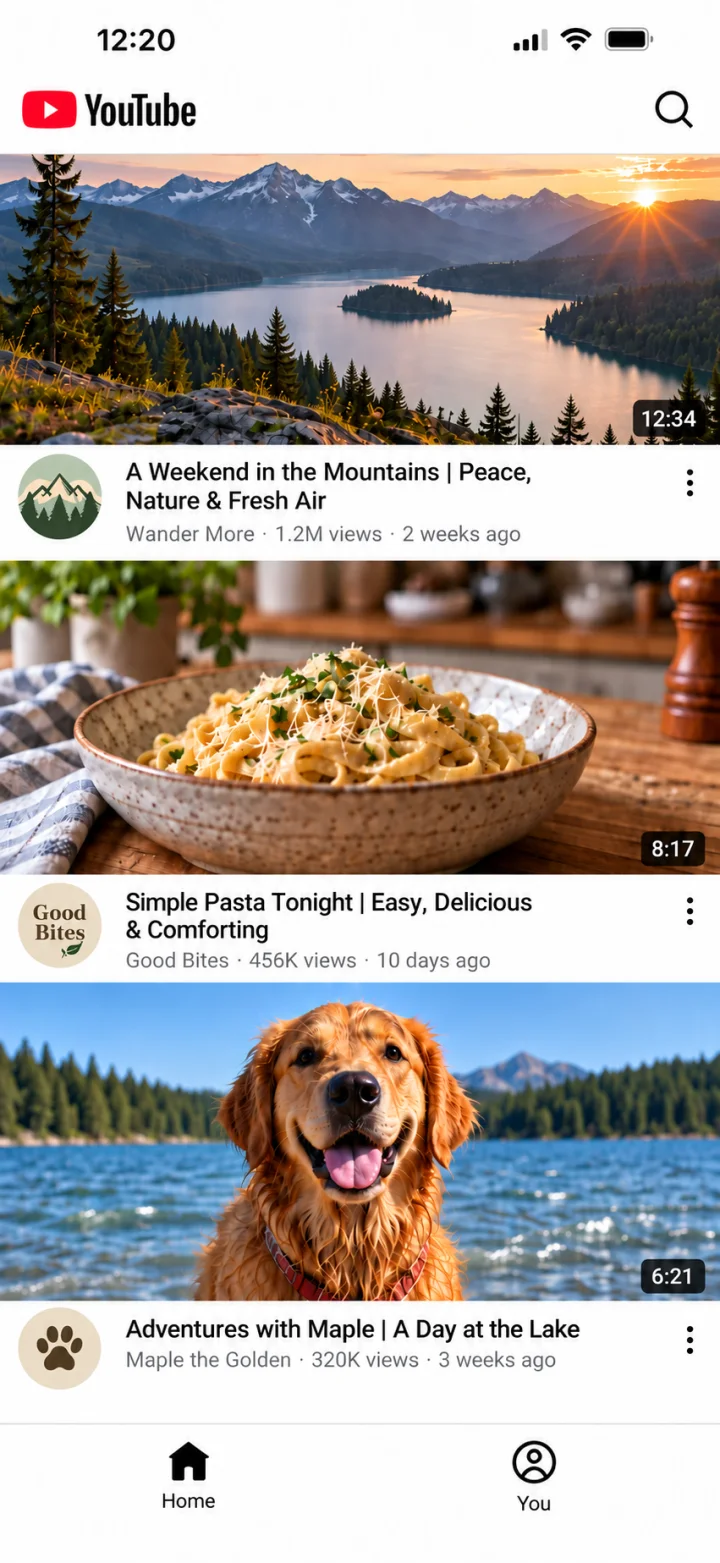
Choose the level of interruption you need
| Approach | Useful when | Boundary |
|---|---|---|
| YouTube Shorts limit | A reminder helps you stop | YouTube says the limit can be ignored |
| ScrollFix filtering | You want a browsing interface without the Shorts feed | Use YouTube inside ScrollFix |
| A whole-app limit | You want time away from YouTube entirely | Access to other YouTube tasks can also be restricted |
Keep long-form viewing intentional
Choose a destination before opening YouTube: a search, a subscription, or a saved video. Hiding Shorts addresses one feed, but you may still want to adjust your routine around recommendations. Our guide to watching without the recommendation feed separates those choices.
Check your important account features after changing filters. If a service update affects the interface, use Support rather than assuming a filter will work unchanged forever.
Product details: ScrollFix’s App Store listing, Privacy Policy, and Terms of Use. Platform features may change. This guide is published by ScrollFix, which sells a subscription.